Overview
The UsdUI schema domain contains schemas for working with general user interface
related features. One use-case is using UsdUI for describing aspects of nodes in
graphs, such as configuring layout hints, node coloration, and so on.
UsdUI allows the user to describe where UI nodes are with NodeGraphNodeAPI,
add descriptive labels and groups to nodes with SceneGraphPrimAPI, and to
visually organize nodes with Backdrops.
Node graphs can be used to describe networks of prims, such as shading and material networks. Consumers such as DCC Tools can visualize node graphs and make complex networks easier to understand. Use the schemas provided by UsdUI to provide hints on how node graphs should be visualized.
UsdUI additionally has schemas that describe accessibility information used in assistive UI, and UI hints that provide hints on how prims and properties should be presented in a UI.
Working With Node Graphs
The SceneGraphPrimAPI allows each node to contain a descriptive name
(ui:displayName) and a descriptive group (ui:displayGroup).
The NodeGraphNodeAPI defines how each node appears in the node graph.
This includes its position (ui:nodegraph:node:pos), color
(ui:nodegraph:node:displayColor), a link to documentation about the node
(ui:nodegraph:node:docURI), the amount of information the node currently
displays (ui:nodegraph:node:expansionState), an icon image to express the
node’s intent (ui:nodegraph:node:icon), its size (ui:nodegraph:node:size),
and its relative depth to other nodes in the graph
(ui:nodegraph:node:stackingOrder). The units for ui:nodegraph:node:pos
are not meant to be pixels but assume the typical node size is 1.0x1.0. For
ui:nodegraph:node:pos Y-positive is intended to be down. Positions are
relative to parent nodes, if any parent nodes exist.
Note
USD doesn’t provide any synchronization of node attributes such as
displayColor and pos with similarly named attributes from other schemas,
such as GPrim’s primvars:displayColor. It is up to the application
implementing how node elements are displayed to provide any sort of
automatic synchronization if desired.
Backdrops provide a way to visually group nodes and provide a useful
description for that group. Unlike SceneGraphPrimAPI.displayGroup,
backdrops are not directly associated with nodes. Visual size and position
of a backdrop is determined using NodeGraphNodeAPI properties.
As an example, presume that we have an application with a node graph that looks like this:
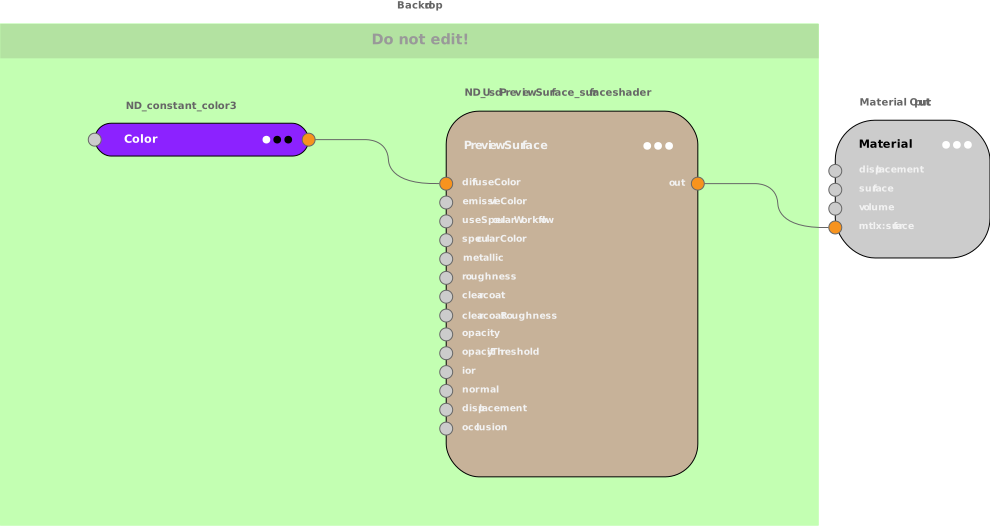
The node graph, including its user interface-related properties, can be represented in USD as follows:
def Material "Material"
{
    token outputs:mtlx:surface.connect = </World/Material/PreviewSurface.outputs:out>

    def Shader "PreviewSurface" (
        prepend apiSchemas = ["NodeGraphNodeAPI"]
    )
    {
        uniform token info:id = "ND_UsdPreviewSurface_surfaceshader"
        color3f inputs:diffuseColor.connect = </World/Material/Color.outputs:out>
        token outputs:out
        uniform color3f ui:nodegraph:node:displayColor = (0.780, 0.698, 0.6)
        uniform token ui:nodegraph:node:expansionState = "open"
        uniform float2 ui:nodegraph:node:pos = (-.85, 1.9)
    }

    def Shader "Color" (
        prepend apiSchemas = ["NodeGraphNodeAPI"]
    )
    {
        uniform token info:id = "ND_constant_color3"
        color3f inputs:value = (1, 0.023, 0.701)
        color3f outputs:out
        uniform color3f ui:nodegraph:node:displayColor = (0.549, 0.133, 1.0)
        uniform token ui:nodegraph:node:expansionState = "closed"
        uniform float2 ui:nodegraph:node:pos = (-2, 2)
    }

    def Backdrop "Backdrop" (
        prepend apiSchemas = ["NodeGraphNodeAPI"]
    )
    {
        uniform token ui:description = "Do not edit!"
        uniform color3f ui:nodegraph:node:displayColor = (0.764, 1.0, 0.698)
        uniform float2 ui:nodegraph:node:pos = (-0.8, 0.5)
        uniform float2 ui:nodegraph:node:size = (450, 330)
    }
}
While not all possible variations are shown above, the following can be observed:
ui:nodegraph:node:displayColorhelps distinguish nodes quicklyui:descriptionin Backdrop can provide context for regional groupings in a node graphui:nodegraph:node:expansionStatecontrols how much information a node displays, note the difference in detail betweenPreviewSurfacevsColorui:nodegraph:node:sizeandui:nodegraph:node:posdetermine the placement and relative positioning of nodes in a node graph.
Working With Accessibility Information
The AccessibilityAPI schema describes accessibility information on a Prim that
may be surfaced to a given runtime’s accessibility frameworks. This information
may be used by assistive features in tools, such as voice controls or screen
readers.
Accessibility information is provided as a standard triplet of label, description, and priority. This is a multiple apply schema, and so may have multiple namespaced accessibility triplets, where an instance name may reflect a given purpose for that triplet. The following simple example provides multiple triplets of accessibility information for a Prim.
def Mesh "Cube" (
    prepend apiSchemas = ["AccessibilityAPI:default", "AccessibilityAPI:size"]
) {
    string accessibility:default:label = "Regular cube"
    string accessibility:default:description = "A plain featureless cube"
    token accessibility:default:priority = "standard"

    string accessibility:size:label = "Regular sized cube"
    string accessibility:size:description = "A 4-meter featureless cube"
    token accessibility:size:priority = "low"
}
See AccessibilityAPI for additional best practices for using this schema.
Working With UI Hints
UsdUI provides schema-like APIs to author UI hints on prims and properties. Use UI hints to describe how a prim or property should be presented in a DCC tool, or other application UI.
UI hints are currently organized into the following groupings:
ObjectHints: General UI hints such as display name, that apply to any prim or property.
PrimHints: Prim-level UI hints, that specify UI features such as how and when display groups are displayed.
PropertyHints: Property-level UI hints, such as the display group that a property belongs to.
AttributeHints: Attribute-level UI hints, such as UI labels for attribute values, and information on the display order for these labels.
Note that no unique hints apply only to relationships, so there is no relationship-level “RelationshipHints” grouping.
Note
UI hints are provided as suggestions on how to present the prim/property in a UI, however it is ultimately up to the tool or application implementing the UI to determine the final presentation.
The following example uses several UI hints to specify how various prims and properties should be presented in a UI.
#usda 1.0

def "TreeA" (
    uiHints = {
        # ObjectHints hints
        string displayName = "Tree template"

        # PrimHints hints
        dictionary displayGroupsExpanded = {
            bool "Trunk settings" = 1
            bool "Body settings" = 1
            bool "Body settings:Branch settings" = 0
            bool "Body settings:Leaf settings" = 1
        }
        dictionary displayGroupsShownIf = {
            string "Body settings:Leaf settings" = "trunkSize != 1"
        }
    }
)
{
    color3f trunkColor = (0.6, 0.3, 0.0) (
        uiHints = {
            # ObjectHints hints
            string displayName = "color"

            # PropertyHints hints
            string displayGroup = "Trunk settings"
        }
    )
    int trunkSize = 2 (
        uiHints = {
            # ObjectHints hints
            string displayName = "size"

            # PropertyHints hints
            string displayGroup = "Trunk settings"

            # AttributeHints hints
            dictionary valueLabels = {
                int huge = 3
                int sapling = 1
                int standard = 2
            }
            token[] valueLabelsOrder = ["sapling", "standard", "huge"]
        }
    )

    float bodyRadius = 5.0 (
        uiHints = {
            # ObjectHints hints
            string displayName = "size"

            # PropertyHints hints
            string displayGroup = "Body settings"
        }
    )

    float branchDensity = 1.0 (
        uiHints = {
            # ObjectHints hints
            string displayName = "density"

            # PropertyHints hints
            string displayGroup = "Body settings:Branch settings"
        }
    )

    float branchLength = 5.0 (
        uiHints = {
            # ObjectHints hints
            string displayName = "length"

            # PropertyHints hints
            string displayGroup = "Body settings:Branch settings"
        }
    )

    color3f leafColor = (0.4, 0.7, 0.25) (
        uiHints = {
            # ObjectHints hints
            string displayName = "color"

            # PropertyHints hints
            string displayGroup = "Body settings:Leaf settings"
        }
    )

    float leafComplexity = 1.0 (
        uiHints = {
            # ObjectHints hints
            string displayName = "complexity"

            # PropertyHints hints
            string displayGroup = "Body settings:Leaf settings"
            string shownIf = "leafStyle == 1"
        }
    )

    int leafStyle = 1 (
        uiHints = {
            # ObjectHints hints
            string displayName = "style"

            # PropertyHints hints
            string displayGroup = "Body settings:Leaf settings"

            # AttributeHints hints
            dictionary valueLabels = {
                int acute = 1
                int obtuse = 2
                int truncate = 3
            }
            token[] valueLabelsOrder = ["acute", "obtuse", "truncate"]
        }
    )

    string tempNotes = "" (
        uiHints = {
            # We never want to show this attribute in the UI
            bool hidden = 1
        }
    )

    # Use property re-ordering to control UI order of properties and
    # display groups
    reorder properties = ["trunkColor", "trunkSize", "bodyRadius", "branchDensity",
    "branchLength", "leafColor", "leafStyle", "leafComplexity"]
}
Note
displayName, hidden, and displayGroup were formerly available as
individual metadata fields (via UsdObject and UsdProperty).
UI hints APIs will look for these metadata fields if the equivalent uiHints
dictionary values are not authored, for backwards compatibility. However, these
individual fields should not be authored going forward, and UI hints APIs or
the uiHints dictionary should be used instead.
Here’s a mock-up of a UI presentation of the previous example that utilizes the authored UI hints.

UI hints are authored as metadata on prims and properties, and no specific
schema needs to be applied to access or author UI hints. UI hints can be
accessed from the uiHints metadata dictionary, however we recommend using
the APIs to work with UI hints when possible. Using the API ensures that
reasonable fallback values are provided if the UI hint isn’t authored. In
the following simple Python example, calling ObjectHints.GetDisplayName() for
a prim with no displayName authored will return an empty string, whereas
retrieving the metadata returns None.
# "PrimWithNoHints" is a prim with an empty "uiHints" dictionary, e.g.
#    def "PrimWithNoHints" (
#        uiHints = {}
#    )
#    {
#    }
noHintsPrim = stage.GetPrimAtPath('/PrimWithNoHints')
hints = UsdUI.ObjectHints(noHintsPrim)
# APIs will return an empty string
print("NoHints: DisplayName from objHints: " + hints.GetDisplayName())
metadata = noHintsPrim.GetMetadata("uiHints")
# Metadata.get returns None if metadata doesn't exist
if metadata.get("displayName") is not None:
    print("NoHints: DisplayName from prim metadata: " + metadata.get("displayName"))
However, there may be cases, such as when custom UI hint keys are authored, that accessing the “uiHints” metadata directly may be necessary.
Display Groups and Property Order
UI Hints uses display groups to organize properties into groups, which can then be organized and displayed as a group in a UI. Using display groups is optional, but helps gather associated properties in a UI for efficient access.
A property specifies the display group it belongs to. Use the UI hints APIs to set a property’s display group.
property = prim.GetProperty("myProperty")
hints = UsdUI.PropertyHints(property)
hints.SetDisplayGroup("Custom Properties")
Groups can be nested, using a “:” separator in the display name. For example, a property with the display group set to “GroupA:NestedGroup” would be organized in the “NestedGroup” display group, which would be a child of the “GroupA” display group.
Prims can control how display groups are presented in a UI using the
displayGroupsExpanded and displayGroupsShownIf UI hints. See
PrimHints for more details and examples.
Properties are normally ordered lexographically when retrieved (via
APIs like Usd.Prim.GetProperties()).
To control the general order that properties should be shown in a UI, specify
the property order in a prim via the Usd.Prim.SetPropertyOrder() API, or via
specifying “reorder properties” in your prim.
def "PropertyOrderPrim" (
)
{
    reorder properties = ["attribute2", "attribute4", "attribute1", "attribute3"]

    int attribute1 = 1
    int attribute2 = 2
    int attribute3 = 3
    int attribute4 = 4
 }
Property order applies to properties with display groups as well. DCC tools should take into account property order when arranging display groups by placing display groups where they are first referenced by a property, and ordering properties by the prim’s property order. For example, the following snippet defines a set of properties, display groups for some of the properties, and a specific property order.
def "PropertyOrderPrimWithDisplayGroups" (
    uiHints = {
        string displayName = "Example"
        dictionary displayGroupsExpanded = {
            bool "Group A" = 1
            bool "Group B" = 1
        }
    }
)
{
    reorder properties = ["attribute4", "attribute2", "attribute1", "attribute3"]

    int attribute1 = 1 (
        uiHints = {
            string displayGroup = "Group B"
        }
    )
    int attribute2 = 2
    int attribute3 = 3 (
        uiHints = {
            string displayGroup = "Group B"
        }
    )
    int attribute4 = 4 (
        uiHints = {
            string displayGroup = "Group A"
        }
    )
 }
The ordering in the UI should look similar to the following mock-up.

Note
The pre-existing displayGroupOrder prim metadata field should be considered
deprecated, and should not be used in combination with property order and
display group related UI hints.
Working With Conditional UI Hints
Certain UI hints, such as PropertyHints’s shownIf, or PrimHints’s
displayGroupsShownIf, use a “boolean expression” string to conditionally
control how an object is displayed in a UI. Typically, the expression is used
to test the resolved value of an attribute in the containing prim. For example,
the following snippet shows a prim that displays a “Deformation parameters”
display group if the prim’s materialHardness attribute value is less than or
equal to 2.0. Additionally the fractureAmount attribute is shown in the UI
(within the “Deformation parameters” display group) only if isFractured is
true.
def "PrimUsingExpressions" (
    uiHints = {
        dictionary displayGroupsShownIf = {
            string "Deformation parameters" = "materialHardness <= 2.0"
        }
    }
)
{
    float bendAmount = 0.0 (
        uiHints = {
            string displayGroup = "Deformation parameters"
            string displayName = "Bend amount"
        }
    )
    float bendDirection = 0.0 (
        uiHints = {
            string displayGroup = "Deformation parameters"
            string displayName = "Bend direction"
        }
    )
    float fractureAmount = 0.0 (
        uiHints = {
            string displayGroup = "Deformation parameters"
            string displayName = "Fracture amount"
            string shownIf = "isFractured == true"
        }
    )

    float materialHardness = 10.0
    bool isFractured = false
}
Boolean expressions can use the following operators:
==: Equal to!=: Not equal to<: Less than<=: Less than or equal to>: Greater than>=: Greater than or equal to&&: Logical “and”||: Logical “or”
Boolean expressions also allow the use of the unary “not” operation (“!”) and
parenthesis to group and order operations. For example, you could have a
property shownIf hint expression string of
“!(status == “active” || level > 5)”, which would only display the property
if the status attribute value was something other than “active” and the
level attribute value was less than or equal to 5.
Note that the hidden object-level UI hint is always taken into account
along with shownIf. This means a property will not be visible in a UI if the
property’s shownIf boolean expression hint evaluates to false or the
property’s hidden hint is set to true.
For additional information on boolean expressions, see SdfBooleanExpression.